Archiv der Kategorie: Information

Introducing Microsoft 365 Copilot Business: Empowering Small and Medium Businesses with AI

Quelle: Link

Introducing Microsoft 365 Copilot Business: Empowering Small and Medium Businesses with AI

bryallen's avatar
bryallen

Icon for Microsoft rankMicrosoft

Nov 18, 2025

Running a small business means wearing a lot of hats. Now you can tap into the power of AI productivity to streamline your business operations. This week, at Microsoft Ignite, we’re announcing Microsoft 365 Copilot Business—an AI-powered productivity tool envisioned just for small- and medium-sized businesses.

Copilot for growing businesses

Microsoft introduced Copilot in 2023, and it quickly became an essential AI companion for companies worldwide. We heard from smaller companies that they wanted a version that would fit their needs and budgets, too. So we’re making that happen. Available worldwide on December 1, 2025, Copilot Business will bring all the same Microsoft 365 Copilot capabilities to you at an SMB-friendly price. All you need is a Microsoft 365 Business plan and fewer than 300 users.

Key features and functionality

Copilot Business delivers a unified experience, connecting across familiar tools like Word, Excel, PowerPoint, Outlook, and Teams. Work IQ — the intelligence layer that enables Microsoft 365 Copilot to know you, your job, and your company inside and out, means that Copilot Business is AI that is truly ready for work, delivering personalized productivity gains. It automates routine tasks and surfaces valuable insights—while respecting your existing security, privacy, and compliance settings. Knowing your sensitive information is protected, you can adopt AI safely and confidently. No extra setup is required, and your data remains private and under your control.

Competitive advantage

More than just another AI tool, Copilot Business helps SMBs tackle real challenges so you can seize new opportunities. Its enterprise-grade AI empowers your team to automate emails, reports, and proposals, freeing up time for strategic work. Copilot includes Copilot Chat, Search, Pages, Notebooks, and customizable agents in a single, unified UI at no additional cost, making advanced AI accessible for your business.

For SMBs, every dollar counts

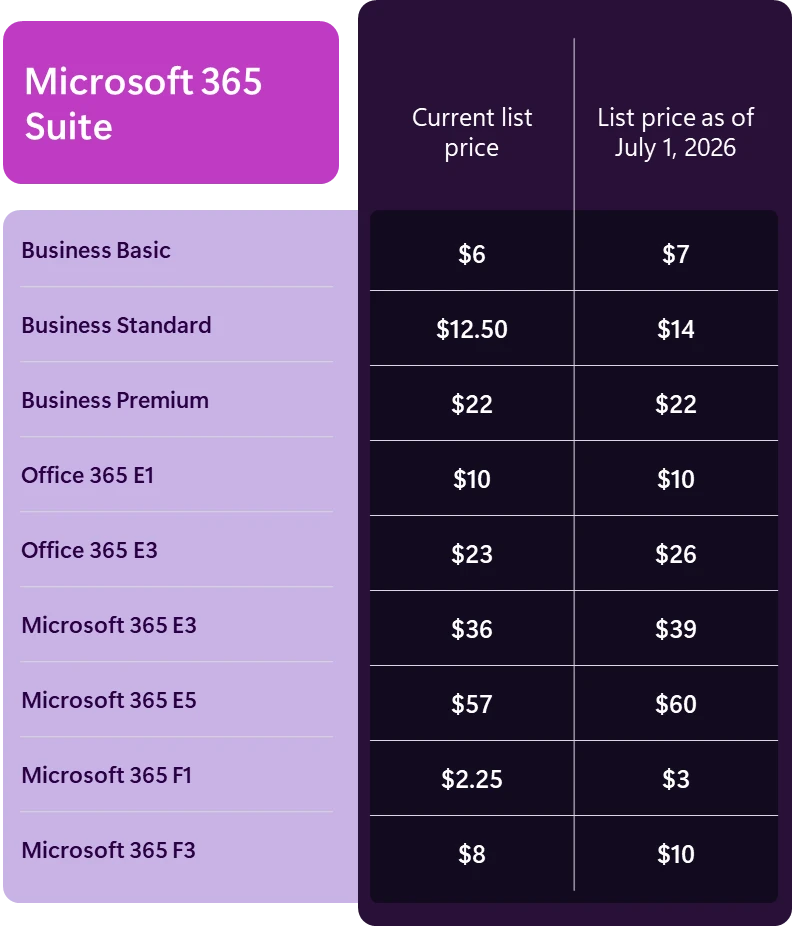
Copilot Business will be priced at a competitive $21 per user per month. You get the same powerful functionality at a price designed for growing businesses.

Image: Introducing Microsoft 365 Copilot Business

Choose the plan that fits your business

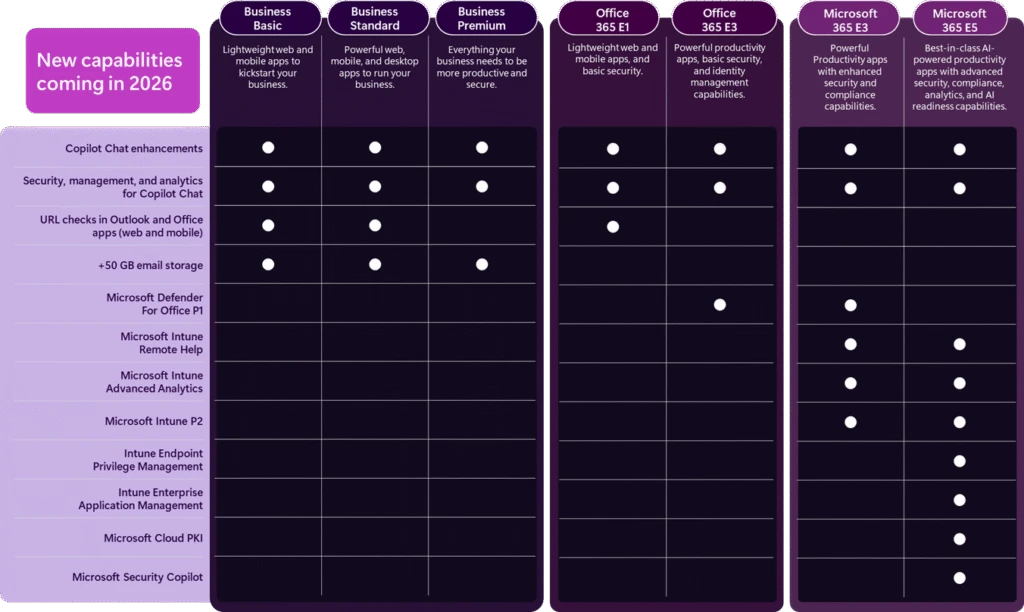
For the best value and to simplify purchasing, we’re taking it even further to help get you started by bundling Copilot Business with qualifying Microsoft 365 Business plans. Choose the best plan for your team:

  • Microsoft 365 Business Basic and Microsoft 365 Copilot Business. Get the essential web and mobile AI-powered apps your team needs to run your business with confidence, so you can make faster, more informed decisions.
  • Microsoft 365 Business Standard and Microsoft 365 Copilot Business. Everything in Business Basic, plus the full suite of desktop Office 365 apps as a single, integrated solution, for a more complete work experience from any device, anywhere.
  • Microsoft 365 Business Premium and Microsoft 365 Copilot Business. Everything in Business Standard along with the comprehensive security features and device management tools to protect your team and your customers as your business grows.

These bundles will be available on both Microsoft.com and through Microsoft Partners beginning December 1, 2025.

Overview of update channels for Microsoft 365 Apps

Quelle: Link

Overview of update channels for Microsoft 365 Apps

 Important

Update Channel Changes Coming July 2025: Microsoft is making significant changes to update channels beginning July 2025:

  • Monthly Enterprise Channel: Rollback support extended to 2 months (from 1 month)
  • Semi-Annual Enterprise Channel (Preview): Being deprecated – migrate devices immediately
  • Semi-Annual Enterprise Channel: Support duration reduced to 8 months (from 14 months), shifting to focus on unattended device

Comparison of the update channels for Microsoft 365 Apps

The following table provides a comparison of Current Channel, Monthly Enterprise Channel, and Semi-Annual Enterprise Channel.

Category Current Channel Monthly Enterprise Channel Semi-Annual Enterprise Channel
Recommended use Provide your users with new Microsoft 365 Apps features as soon as they’re ready, but on no set schedule. Provide your users with new Microsoft 365 Apps features only once a month and on a predictable schedule. For non-interactive devices and those running specialized or business-critical workloads that require extensive testing before new Microsoft 365 Apps features are implemented. Suitable for select devices performing automated tasks where end-users aren’t present, ensuring compliance with regulatory and organizational standards.
Release frequency1 At least once a month (likely more often), but on no set schedule Once a month, on the second Tuesday of the month Once a month, on the second Tuesday of the month
Feature updates2 As soon as they’re ready (once a month), but on no set schedule Once a month, on the second Tuesday of the month Twice a year (in January and July), on the second Tuesday of the month
Security updates3

(if needed)

Once a month, on the second Tuesday of the month Once a month, on the second Tuesday of the month Once a month, on the second Tuesday of the month
Non-security updates2

(if needed)

Usually at least once a month (possibly more often), but no set schedule Once a month, on the second Tuesday of the month Once a month, on the second Tuesday of the month
Support duration for a given version4 Until the next version is released with new features, which is usually about one month Two months Eight months (Beginning July 2025; previously fourteen months)
Rollback support5 Not applicable Two months (Beginning July 2025; previously one month) Two months (Beginning July 2025)

Zyxel – Switch Flow Control

Quelle: Link

Switch Flow Control

Posts: 254  Zyxel Employee

Zyxel Certified Network Engineer Level 2 - WLANZyxel Certified Network Engineer Level 2 - SwitchZyxel Certified Network Engineer Level 2 - NebulaZyxel Certified Network Engineer Level 2 - Security
 edited May 2024

Switch Flow Control

Introduction to Switch Port Flow Control

Switch port flow control is a critical feature for managing network congestion and ensuring smooth data transmission across the network. This article provides a comprehensive overview of switch port flow control, its benefits, and how to enable it on Zyxel switches.

Understanding Packet Buffers

Every switch has a hardware buffer, also known as a packet buffer. This buffer temporarily stores traffic during congestion to prevent packet loss. The size of the packet buffer varies by switch model. For example, the XGS 2220 has a packet buffer size of 2 megabytes.

Causes of Congestion

Network congestion can occur due to two main reasons:

  • High to Low Link Transmission: When a device connected to a high-speed (e.g., 10 Gbps) link sends data to a device on a lower-speed (e.g., 1 Gbps) link, the higher volume of traffic cannot be processed at the same rate by the lower-speed link, causing congestion.
  • Multiple Links to a Single Link: When multiple high-speed links send data to a single lower-speed link, the combined traffic can exceed the capacity of the single link, leading to congestion.

Ethernet Flow Control (IEEE 802.3X)

Ethernet flow control allows switches to send and process pause frames to manage traffic and prevent packet loss. When the packet buffer reaches a certain threshold, the switch sends a pause frame to the sending device to temporarily halt data transmission.

Key Concepts:

  • Pause Frame Threshold: The buffer level at which the switch triggers the transmission of pause frames.
  • TX Pause Frames: Sent by the switch to ports with flow control enabled to stop data transmission when the buffer reaches the threshold.
  • RX Pause Frames: Received by the switch from other devices, causing it to temporarily stop data transmission on the ports with flow control enabled.

Benefits of Flow Control

The primary benefit of flow control is to prevent packet loss during periods of congestion. While it introduces a small amount of latency, this is generally preferable to the higher latency and retransmission overhead caused by packet loss.

Enabling Flow Control

To enable flow control on a Zyxel switch:

  1. Access the Switch Port Settings: Navigate to the switch’s configuration page and select the port you want to configure.
  2. Enable Flow Control: Toggle the flow control option to enable sending and receiving pause frames.
  3. Filter by Flow Control Setting: Use the filter option to view and manage the flow control settings of each port.

Best Practices for Flow Control

While flow control can prevent packet loss, it should not be enabled on all ports indiscriminately. Consider the following best practices:

  • Target Specific Ports: Enable flow control on ports connected to servers or critical devices where congestion is likely to occur.
  • Avoid Enabling on Core Links: Do not enable flow control on links that are central to your network’s operation, as this can introduce latency that affects multiple devices.

Conclusion

Flow control is a valuable tool for managing network congestion and ensuring efficient data transmission. By understanding how it works and implementing it strategically, you can improve the performance and reliability of your network.

Strengthening Email Ecosystem: Outlook’s New Requirements for High‐Volume Senders

Quelle: Link

This applies to Outlook.com – our consumer service, which is supporting hotmail.com live.com and outlook.com consumer domain addresses.

Introduction

In an era where email remains one of the most widely used tools for personal and business communications, Outlook is stepping up its commitment to protect inboxes and preserve trust in the digital ecosystem. Today, we’re announcing new requirements and best practices designed to strengthen email authentication for domains sending more than 5,000 emails per day. 

These new requirements will enforce stricter standards by including mandatory SPF, DKIM, DMARC settings. Outlook is pushing the broader industry toward best practices and safeguarding the millions of individuals and small businesses that rely on us every day. These measures will help reduce spoofing, phishing, and spam activity, empowering legitimate senders with stronger brand protection and better deliverability. 

Outlook has always prioritized user safety and reliability; we’re proud to further invest in this solution that will keep our customers safe and reinforce the best practices across the industry. We believe that by raising the bar for large senders, we can inspire lasting change that benefits everyone. 

What’s Changing?

For domains sending over 5,000 emails per day, Outlook will soon require compliance with SPF, DKIM, DMARC. Non‐compliant messages will first be routed to Junk. If issues remain unresolved, they may eventually be rejected. Senders will soon start requiring compliance with the following requirements: 

  1. SPF (Sender Policy Framework)
    • Must Pass for the sending domain.
    • Your domain’s DNS record should accurately list authorized IP addresses/hosts.
  2. DKIM (DomainKeys Identified Mail)
    • Must Pass to validate email integrity and authenticity.
  3. DMARC (Domain-based Message Authentication, Reporting, and Conformance)
    • At least p=none and align with either SPF or DKIM (preferably both).

Learn more about email authentication here.

Additional Email Hygiene Recommendations

Large senders should also adopt these practices to maintain quality and trust:

  • Compliant P2 (Primary) Sender Addresses: Ensure the “From” or “Reply‐To” address is valid, reflects the true sending domain, and can receive replies. 
  • Functional Unsubscribe Links: Provide an easy, clearly visible way for recipients to opt out of further messages, particularly for marketing or bulk mail. 
  • List Hygiene & Bounce Management: Remove invalid addresses regularly to reduce spam complaints, bounces, and wasted messages. 
  • Transparent Mailing Practices: Use accurate subject lines, avoid deceptive headers, and ensure your recipients have consented to receive your messages. 

Outlook reserves the right to take negative action, including filtering or blocking—against non‐compliant senders, especially for critical breaches of authentication or hygiene. 

Enforcement Timeline

Starting today, we encourage all senders and particularly those that send at high volume to review and update their SPF, DKIM, and DMARC records, in preparation for when the enforcement begins, starting in May. 

After May 5th, 2025, Outlook will begin routing messages from high volume non‐compliant domains to the Junk folder, giving senders an opportunity to address any outstanding issues. NOTE: that in the future (date to be announced), non-compliant messages will be rejected to further protect users.   

Next Steps
  • Prepare Now: Audit your DNS records (SPF, DKIM, DMARC) and verify you meet all the requirements. To view the authentication header, visit this. To learn how to read authentication headers, click here. 
  • Stay Informed: We’ll provide updates on official rollout schedules, and dates for when rejection actions will begin through a blog post. 
  • Join Our Mission: Embracing better authentication and hygiene not only benefits your deliverability but also helps protect the entire email ecosystem. 

For additional resources or support, visit sender support. Thank you for partnering with us to make email a more secure, transparent, and trusted channel for everyone. 
Featurevergleich zwischen neuem Outlook und klassischem Outlook

Quelle: Link

Letzte Aktualisierung: 11. März 2025

Das neue Outlook für Windows bietet Ihnen die neuesten Features, Microsoft Copilot unterstützten Funktionen und ein neues modernes und vereinfachtes Design, mit dem Sie Verbindungen herstellen, organisieren und erledigen können.

Wir haben eine Featureabdeckungsmatrix zusammengestellt, die Ihnen und Ihren Teams hilft, zu verstehen, was verfügbar und bald verfügbar ist, im Vergleich zu dem, was heute in der klassischen Outlook-Umgebung vorhanden ist.

Hinweis: Einige Features sind nur für Personen verfügbar, die ein Geschäfts-, Schul- oder Unikonto in Outlook mit einem qualifizierten Microsoft 365-Abonnement verwenden.

Wir hören uns ihr Feedback aktiv an und nehmen Aktualisierungen und Änderungen an unserer Feature-Roadmap vor, basierend auf ihren Informationen. Wenn Sie Feedback dazu haben, was wir zum neuen Outlook hinzufügen sollten, verwenden Sie bitte den Link In-App-Hilfe > Feedback geben .

Featurevergleich zwischen neuen Outlook- und klassischen Outlook-Versionen

Schlüsseldefinitionen

  • Verfügbar: Das Feature ist verfügbar.
  • Teilweise verfügbar: Das Feature ist verfügbar; Es verfügt jedoch im Vergleich zu anderen Outlook-Versionen möglicherweise nicht über alle vorhandenen Features.
  • Nicht unterstützt: Das Feature wird in der aufgelisteten Outlook-Version nicht unterstützt.
  • Untersucht: Wir überprüfen derzeit Feedback zu diesem Feature.
  • In Kürze: Dieses Feature wird in Zukunft verfügbar sein.

Quelle: Link

Die Fujitsu Technology Solutions GesmbH wird zur Fsas Technologies GesmbH

Und bleibt ein 100%iges Tochterunternehmen von Fujitsu!

Im Rahmen unserer globalen Strategie hat Fujitsu am 1. April 2024 die Geschäftsbereiche Server und Storage in der Fsas Technologies Inc. Group in Japan zusammengelegt. Mit dem Ziel, eine globale Platform-Geschäftseinheit zu bilden, wird der europäische Platform-Geschäftsbereich ab dem 1. April 2025 Teil der Fsas Technologies Inc. Group werden.

Die Umfirmierung erfolgt unter Beibehaltung unserer rechtlichen Identität. Werte, Produktportfolio, Produktnamen, Ansprechpartner und Kontaktdaten bleiben gleich. Es ändert sich lediglich der Name unseres Unternehmens.  

Als Fsas Technologies können und werden wir uns vollständig auf die Bedürfnisse unserer Kunden und Partner konzentrieren – und unsere spezifische Expertise als datensouveräner Technologieführer für Rechenzentrumslösungen und Infrastrukturdienstleistungen nutzen.

Mit dieser Transition zu Fsas Technologies stellen wir neben dem Fujitsu Services Geschäft eine eigene Säule im Fujitsu Konzern dar, profitieren aber gleichzeitig als 100%ige Tochter von der Stärke, den Werten und den Ressourcen unseres japanischen Mutterkonzerns.

Installieren des klassischen Outlook für Windows

Quelle: Link


Applies To
Wenn Sie kürzlich ein neues Windows-Gerät gekauft haben, können Sie das klassische Outlook möglicherweise nicht finden, oder das Symbol wird angezeigt, aber Sie erhalten eine Fehlermeldung, wenn Sie versuchen, es zu öffnen. Die Fehlermeldung besagt möglicherweise, dass Outlook nicht gefunden werden kann, oder sie könnte Folgendes sagen:

  • Wir konnten dies nicht überprüfen und installieren, da sie im Microsoft Store nicht verfügbar ist. Um es zu installieren, laden Sie sie von der Website des Publishers herunter.

Dieses Problem liegt daran, dass ab 2024 bei vielen neuen Geräten das neue Outlook für Windows vorinstalliert ist und das klassische Outlook nicht mehr mitgeliefert wird. Wenn Sie zu diesem Zeitpunkt lieber das klassische Outlook verwenden möchten, steht Ihnen eine eigenständige Version des klassischen Outlook für Windows zur Installation zur Verfügung.

Installieren des klassischen Outlook für Windows

Um eine eigenständige Version des klassischen Outlook für Windows zu installieren, wählen Sie Herunterladen aus und befolgen Sie die Anweisungen, um die Installation abzuschließen.

Herunterladen

Sie können es aus dem Windows Store installieren.

Aus dem Store installieren

Introducing Exchange Online Tenant Outbound Email Limits

Quelle: Link

Introducing Exchange Online Tenant Outbound Email Limits

The_Exchange_Team's avatar

Feb 24, 2025As with all cloud services, Exchange Online imposes service limits to prevent misuse of Exchange Online resources and ensure availability for all users. For example, aside from the High-volume Email offering, Exchange Online doesn’t support bulk or high-volume email, yet until now we’ve mostly used only a per-mailbox daily send limit (known as the Recipient Rate Limit or RRL) to enforce this.

Going forward, we’re introducing new tenant-level outbound email limits (also known as the Tenant External Recipient Rate Limit or TERRL) that are calculated based on the number of purchased email licenses a tenant has or if a tenant has only trial licenses. Enforcement for trial-only and single-seat tenants is already enabled. We’ll continue to enable enforcement for all other tenants in the Exchange Online multitenant standard environment in March, starting with tenants with a small number of licenses, then gradually including all tenants by April.

TERRL rollout schedule

Phase Enable enforcement for tenant group Rollout start date
1 Tenants with <= 25 email licenses March 3, 2025
2 + additional tenants with <= 200 licenses March 10, 2025
3 + additional tenants with <= 500 licenses March 17, 2025
4 + all remaining tenants March 31, 2025

Based on service telemetry, most Exchange Online customers won’t be impacted. A new report (Tenant Outbound External Recipients) will be made available in the EAC by late-February that will show your tenant’s limit. If your organization needs to send more email to external recipients than your limit allows, we recommend using Azure Communication Services email for bulk or high-volume emailing to external recipients.

More Information

The Tenant External Recipient Rate Limit (TERRL) is the maximum number of external recipients a tenant in good standing can send to per day (24-hour sliding window). External recipients are those whose email address domains are not an accepted domain in the tenant. The TERRL establishes base-line outbound sending limits for all tenants, but additional current and future restrictions can also occur due to factors like suspicious sending behavior, sending spam, fraudulent or excessively late payments, etc.

Below are the new maximum tenant external recipient rate limits:

  • Trial tenants: Limited to 5,000 total external recipients per day, regardless of license count.
  • Non-trial tenants: Daily outbound limit is based on the tenant’s purchased email licenses (any Exchange Online or Exchange Online Protection license). More licenses increase the number of external recipients your tenant can send to per day, but at a decreasing rate per license. By late February you’ll find your tenant’s TERRL in the Tenant Outbound External Recipients report in the EAC Reports > Mail flow section. You can also use the following formula to determine your tenant’s TERRL:
500 * (Purchased Email Licenses^0.7) + 9500

Sample limits for tenants with various license counts are shown below:

Number of Purchased Email Licenses Tenant External
Recipient Rate Limit
1 10,000
2 10,312
10 12,006
25 14,259
100 22,059
1,000 72,446
10,000 324,979
100,000 1,590,639

If your tenant exceeds its daily outbound sending limit subsequent messages sent to external recipients will be blocked and senders will receive one of the following bounce messages (also known as Non-Delivery Receipts or NDRs):

  • Trial tenants: 550 5.7.232 – Your message can’t be sent because your trial tenant has exceeded its daily limit for sending email to external recipients (tenant external recipient rate limit)
  • Non-trial tenants: 550 5.7.233 – Your message can’t be sent because your tenant exceeded its daily limit for sending email to external recipients (tenant external recipient rate limit)